
Quick copy
Jump to:
- For your organization: an owner adds the connector once, for everyone.
- As a member of an organization: connect your own account once an owner has added it.
- For a UK organization: the same, with the UK connector, so your documents stay in the UK.
Add the connector
-
In Claude, open Customize in the sidebar, then the Connectors tab.
-
Click Add, then Add custom connector. Fill in the two fields and click Continue:
NameVersion Story CompareMCP URLhttps://mcp-compare.versionstory.com/mcp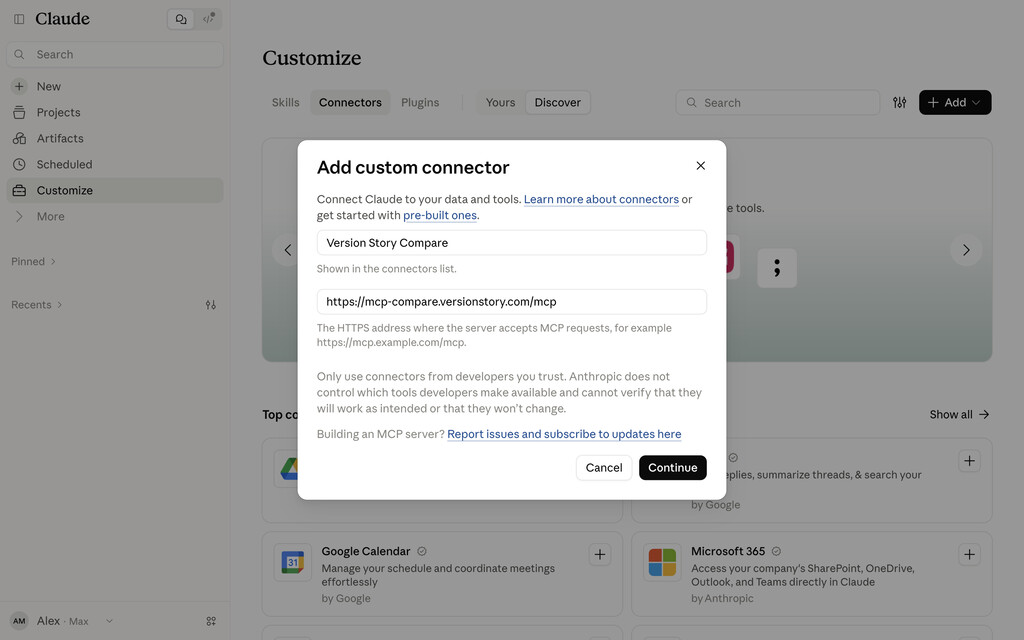
The Add custom connector dialog with the name and URL filled in -
Claude checks the server. If it asks how members sign in, choose Sign in now under Authentication, and Register automatically under OAuth client. Version Story does not use Claude's published identity, so leave that option, even though Claude marks it recommended. Click Add.
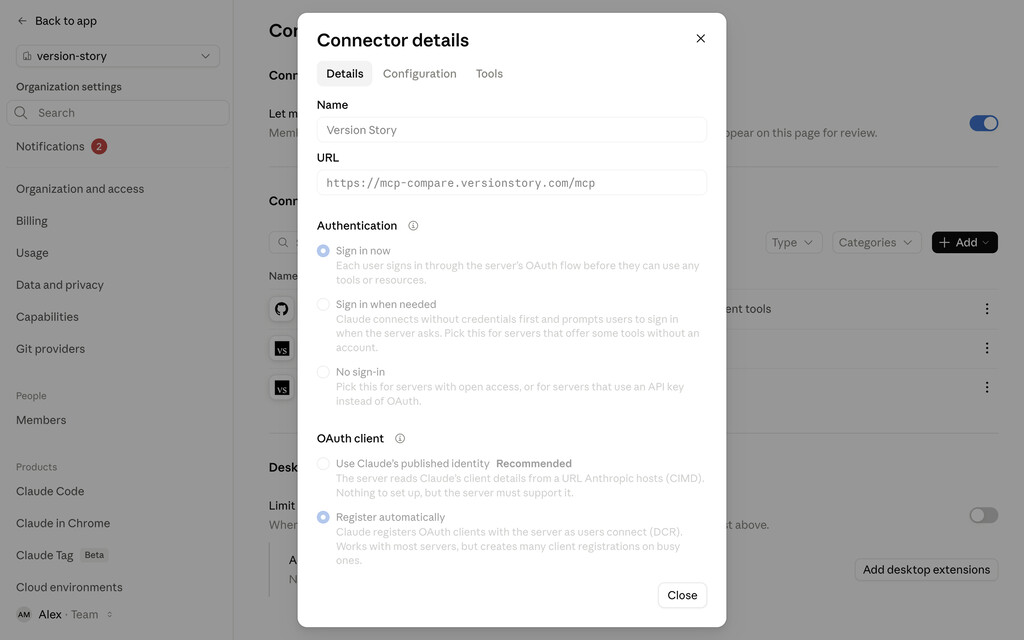
Authentication set to Sign in now, and OAuth client set to Register automatically -
On the connector's page, click Connect. Sign in to Version Story if you are not already signed in, then click Authorize. You are returned to Claude.
-
Under Tool permissions, set all three groups, Interactive tools, Read-only tools and Write/delete tools, to Always allow using the menu to the right of each. On any other setting Claude stops to ask before each step of a comparison.
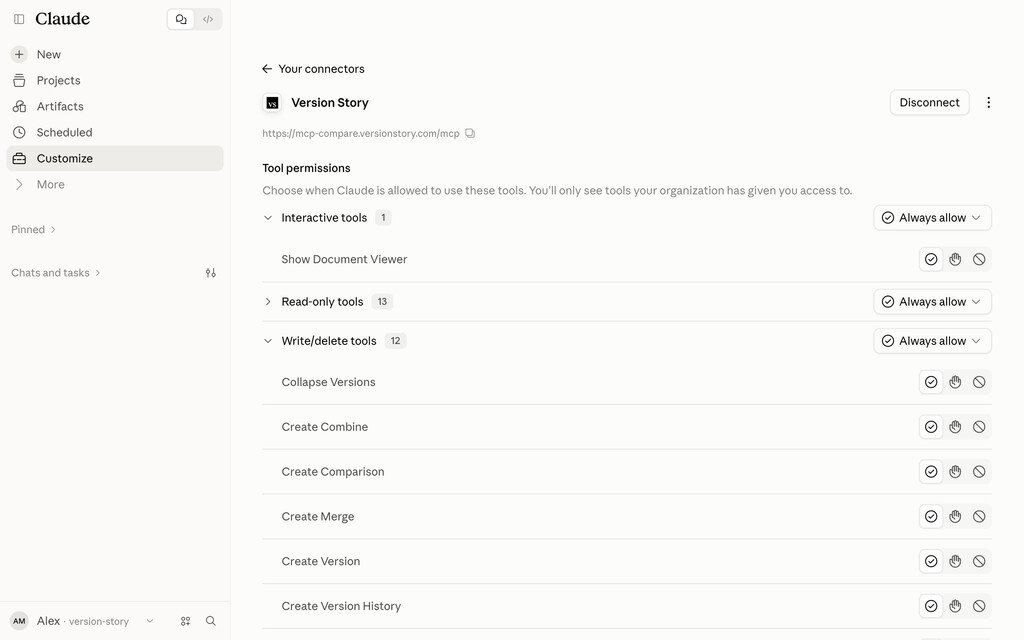
Tool permissions with all three groups set to Always allow


Allow network access
Claude moves your documents to Version Story and brings the finished redlines back, so it needs to reach Version Story.
-
Open Settings → Capabilities, and under Code execution and file creation make sure Run code in the cloud is on. The network setting has no effect while it is off.
-
Turn on Allow network egress.
-
Under Additional allowed domains, enter this domain and click Add:
Allowed domain*.versionstory.com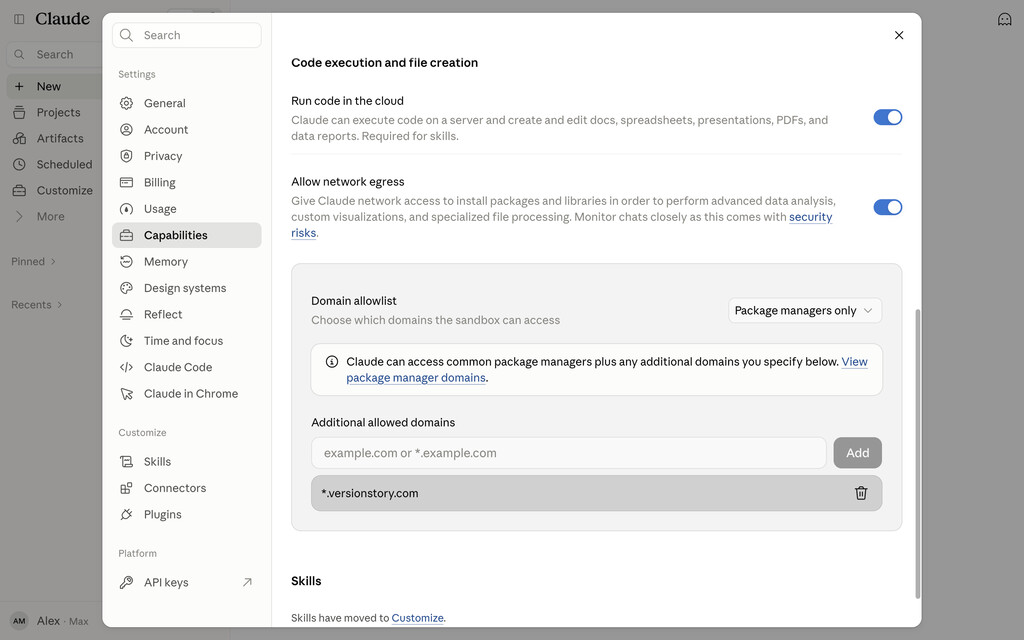
Run code in the cloud and Allow network egress on, with the domain in the allowlist

Tell Claude when to use it
Open Settings → Account, and under Instructions for Claude add this line, so Claude reaches for Version Story whenever you ask for a comparison without your having to name it:

Test it
Start a new conversation, attach two versions of a document, and ask Claude to redline them. Claude returns the PDF redline, previewed in the conversation, and a link to the interactive redline in Version Story. Compare Documents in Claude has more to try.
If a comparison fails with a host-allowlist error, network access is not set up: the domain is missing, the egress toggle is off, or Run code in the cloud is off.
For your organization
An owner of your Claude organization adds the connector and sets the organization's capabilities once, for everyone. Then each member connects their own Version Story account, so every redline lands in the right person's projects.
Add the connector
-
Open Organization settings → Connectors.
-
Click Add, then Custom → Web. Fill in the two fields and click Continue:
NameVersion Story CompareMCP URLhttps://mcp-compare.versionstory.com/mcp -
Choose Sign in now under Authentication, and Register automatically under OAuth client, then click Add. Sign in now is what you want: each member signs in to their own Version Story account.
The connector's Tools tab sets a ceiling on what members may choose. Its default lets them choose Always allow; leave it there, or members cannot let a comparison run start to finish.
Set the organization's capabilities
Both settings are in Organization settings → Capabilities.
-
Under Tool approvals, turn on Allow "Always allow" for connector tools, so members can set the connector's tools to run without asking each time, and Allow "Skip all approvals" mode.
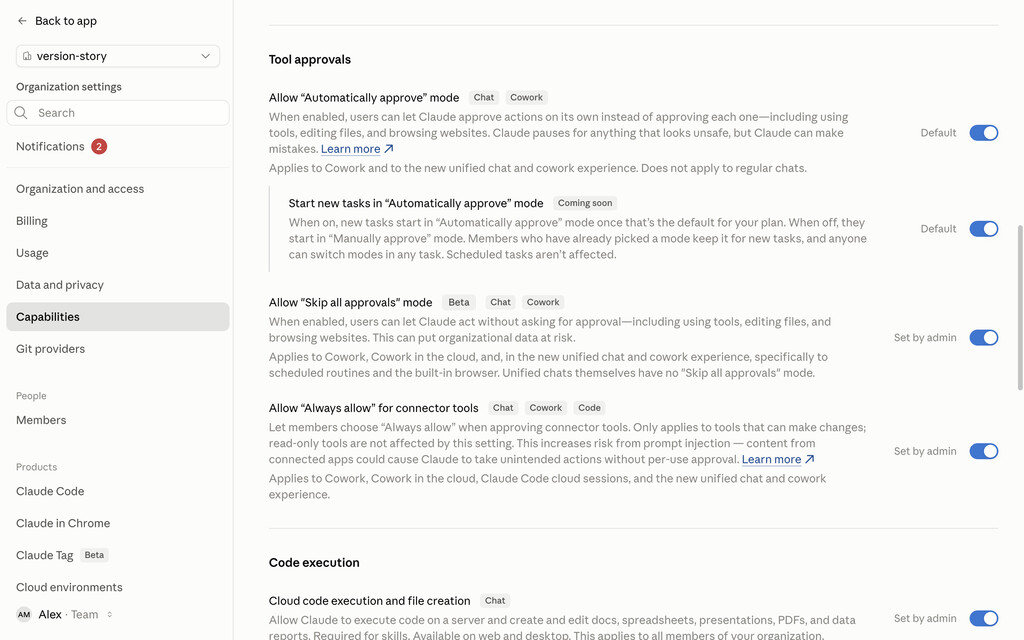
Tool approvals with Skip all approvals mode and Always allow for connector tools turned on -
Under Code execution, turn on Cloud code execution and file creation and Allow network egress, then add this domain under Additional allowed domains:
Allowed domain*.versionstory.com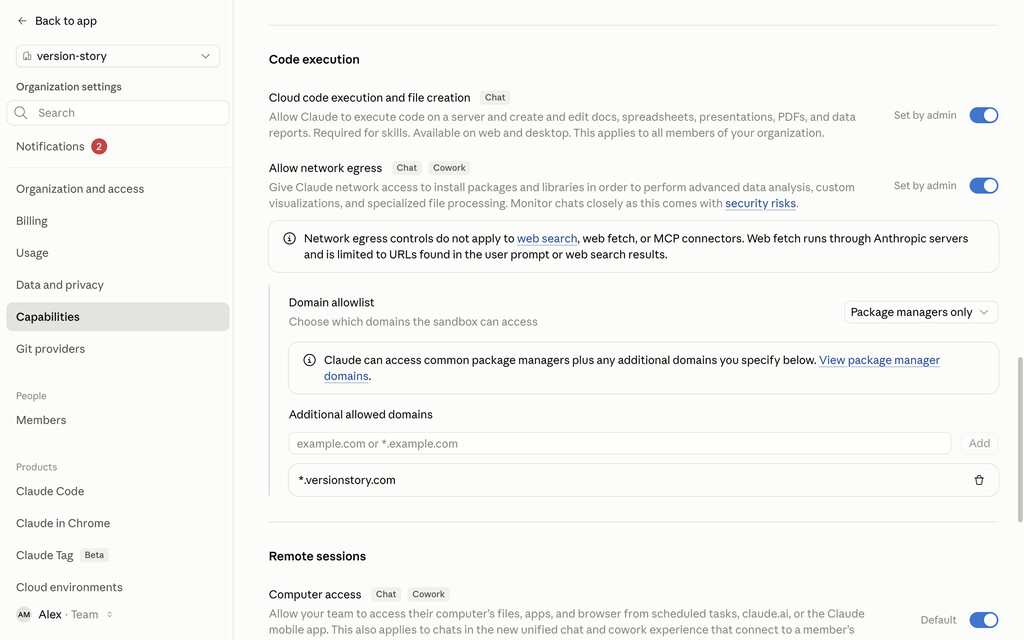
Code execution and network egress on, with the domain in the organization's allowlist


Then each member connects their own account: As a member of an organization.
As a member of an organization
Once an owner has added the connector for your organization:
- Open Customize in the sidebar, then the Connectors tab. The connector your owner added is listed under Yours. Click it.
- Click Connect. Sign in to Version Story if you are not already signed in, then click Authorize. You are returned to Claude.
- Under Tool permissions, set all three groups to Always allow, as in Add the connector.
- Under Settings → Account → Instructions for Claude, add the line from Tell Claude when to use it.
For a UK organization
An organization whose Version Story account is in the UK, the one you sign in to at uk.versionstory.com, uses the UK connector. It keeps your documents and redlines in the UK, and members sign in with their UK Version Story accounts. Copy this URL instead of the one at the top of the page:
Everything else is as For your organization and As a member of an organization describe, with two differences:
- The owner pastes the UK URL above as the MCP server URL. The
*.versionstory.comdomain already covers the UK connector and the UK sign-in page. - Each member signs in at
uk.versionstory.comwhen they click Connect, with their UK account. Redline links then open atuk.versionstory.com.
Version Story keeps its side in the UK. Where Claude itself processes your conversations is set in your Claude organization, separately. If the sign-in page asks for an account a member does not have, the connector was added with the US URL: an owner should remove it and add it again with the UK URL.